Friday, 23 May 2014

AWS deployment options - Part 2 - mod_jk with autoscaling


If the application requires session stickiness at the Tomcat tier, i.e. if some user details are stored in the HTTP Session and you don't enable session replication across Tomcats. The solution is that the Elastic Load Balancer (ELB) maintains the sticky session using it’s own cookie called AWSELB. For ELB sticky session configuration see http://docs.aws.amazon.com/elasticbeanstalk/latest/dg/using-features.managing.elb.html
In case there is an external ELB (Apache tier) with cookies stickiness set, it will over-ride the internal ELB (Tomcat tier). The stickiness cookie is always named AWSELB, hence the external ELB will overwrite the cookie from the internal ELB. One option here is to set the Tomcat tier ELB with "Application Generated Cookie Stickiness" with value JSESSIONID so it will follow the Application cookie and maintain sticky sessions.
 

In case sticky session is not enabled on the application tier, and the user is forwarded to a Tomcat server where the session is not present, the user’s session information will be lost

There are various approaches available to maintain session stickiness, and these have been discussed below.
 
Option 1: Use mod_jk to get Apache to direct to the correct Tomcat

Option 2: Use mod_proxy

Option 3: No session stickiness, keep it stateless (which is what Amazon recommends)

The mod_jk implementation looks like this
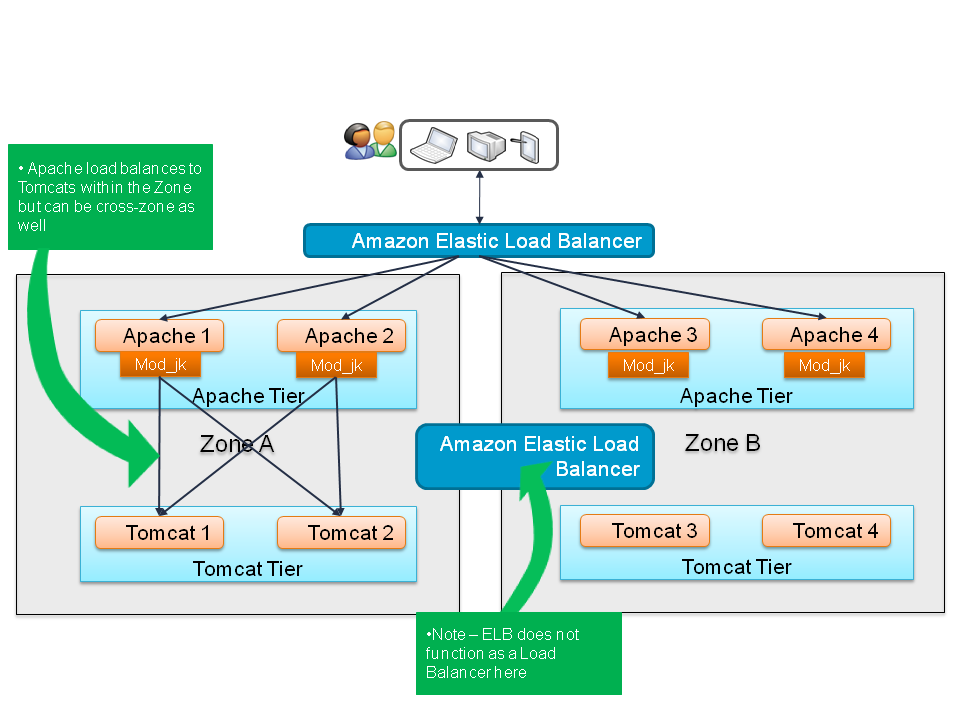
 
 
The Apache web server can maintain session stickiness along with load balancing i.e. The requests from the Apache server to the Tomcat server are load balanced along with maintaining session stickiness, by Apache server itself .(The application ELB is bypassed).
In this approach the Apache server needs to know the list of all possible Tomcat IPs.
When we set up autoscaling, Tomcat can start up new instances on any IP within the subnet. That's the way AWS works.
Hence this is not feasible as when we restart the AWS servers the IPs might change.


 Mod JK Configuration

The file “httpd.conf” at the location “/www/Apache/conf” needs to have the following entries. These entries indicate that the files from folders “img”, “images”, ”css” and “media” will be served locally where as rest of the requests will be forwarded to the load balancer “lb”.


LoadModule jk_module modules/mod_jk-1.2.30-httpd-2.2.X.so
JkWorkersFile conf/workers.properties
JkLogFile logs/mod_jk.log
JkLogLevel error
JkShmFile logs/mod_jk.shm
 
JKMount /status jkstatus
 
JkAutoAlias /apps/Tomcat/apache-tomcat-7.0.42/webapps
 
JkMount  /* lb
JkUnMount /img/* lb
JkUnMount /images/* lb
JkUnMount /css/* lb
JkUnMount /media/* lb


Also the file “worker.properties” will also need to be modified as indicated below.


worker.list=lb,jkstatus
 
#node 1
worker.node1.type=ajp13
worker.node1.port=8009
worker.node1.host=172.23.0.36
worker.node1.lbfactor=1
worker.node1.cachesize=10
 
#node 2
worker.node2.type=ajp13
worker.node2.port=8009
worker.node2.host=172.23.0.38
worker.node2.lbfactor=1
worker.node2.cachesize=10
 
#node 3
worker.node3.type=ajp13
worker.node3.port=8009
worker.node3.host=172.23.1.36
worker.node3.lbfactor=1
worker.node3.cachesize=10


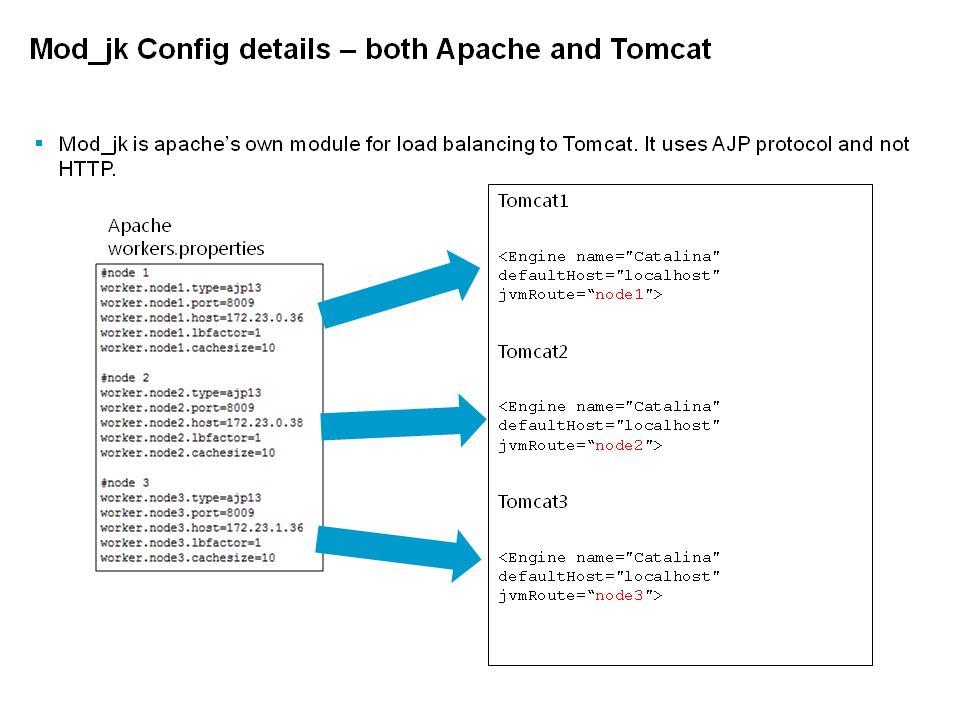
 This maps to the Tomcat server.xml for each JVM


§Pros:
–Has very good support for failure detection and switchover to alternate Tomcat server.
–Use ELB for health checks and not for load balancing
§Cons:
–The session stickyness is using cookies like this jsessionid=AB327CD87667461357C95742BB9974B1.node1 which is maintained via configuration in Apache workers.properties. In this all Tomcat IP addresses and ports must be mentioned along with a logical name for each Tomcat (node1 in this case)
That logical name
must be the same as entered in each individual Tomcat server.xml as it’s “jvmRoute” as well. Thus we will have Tomcat node1, node2 .. nodeN
–This affects autoscaling because Tomcats will be a new instance autoscaled on any available IP (from a set of IPs) and it’s not possible to hardcode a “nodeX” in Tomcat when it is launched via autoscaling
For this reason we next take a look at mod_proxy


Thursday, 22 May 2014

Amazon AWS deployment options for Apache web server to Tomcat connectivity


The cloud proposition is attractive because of the ability to scale up or down to meet workload demand almost instantaneously and to utilize efficiencies in the services delivery model. The rationale of using and paying for only what you need, when you need it is a very compelling business justification.


This post and the next few ones describes the various options and features available when a web application is deployed on the AWS cloud infrastructure using Apache HTTP Web Server and Apache Tomcat application server. This document deals more with options available to maintain sticky sessions and application persistence.
 
This is based on a recent project where we are deploying with Apache 2.4 and Tomcat 7.0.x
 
First some basic terms
 

 AWS Glossary

 
·                     Amazon EC2 is hosted in multiple locations world-wide. These locations are composed of Regions and Zones. Each region is a separate geographic area.
Each region has multiple, isolated locations known as Availability Zones. This supports high availability of the applications and workloads can be balanced across both availability zones.
·                     To maintain a high-level of security the different tiers such as Web, App and Database are divided into separate subnets and "Security Groups", which are roughly analogous to firewalls.  This is done through Amazon VPC, a logically isolated section of the AWS Cloud where customers can launch AWS resources into a virtual network which they define. Capability to control inbound and outbound access to and from individual subnets using network access control lists, i.e. stateless firewall.  
·                     Load balancer (Elastic Load Balancer)
Elastic Load Balancing automatically distributes incoming application traffic across multiple Amazon EC2 instances. Elastic Load Balancing also detects unhealthy instances and automatically reroutes traffic to healthy instances until the unhealthy instances have been restored. Elastic Load Balancing can also be enabled within a single or multiple Availability Zones for more consistent application performance.
ELB also maintains Sticky sessions in case the application requires it.

 
Logical View


The application is hosted across two Zones within a region.
There is a Web tier ELB to load balance across the Apache servers as well as an Application tier ELB to load balance requests across the Tomcat servers. Cross-zone load balancing is optional and can be configured as required.
The requests from the Apache server to the Tomcat server can also be load balanced by Apache server itself (i.e. the application tier ELB is bypassed and not used). But this is not a preferred approach for AWS.
Hence both the application as well as the web tier ELB’s are used for load balancing.
In the next post I will explain how to use either mod_jk or mod_proxy to achieve the load balancing plus sticky sessions.


Saturday, 15 March 2014

Now Playing - March 2014


Music albums that I've liked over the last few months:

Radical Face - love this album The Family Tree: The Branches - reminds me of Bon Iver and The Verve
The National - Trouble Will Find Me
Of Monsters and Men
The Secret Life of Walter Mitty - OST - Jose Gonzalez has a superb song titled Step Outside
Pearl Jam - Lightning Bolt

Aside on Bon Iver's Holocene - which was part of the OST for Cameron Crowe's "We Bought a Zoo" - the lyrics and tune remind you of vast open white wilderness (ignore the geological meaning) - which reminds me of what a Vanilla Sky would look like - which is another of Cameron Crowe's films.

Wednesday, 15 January 2014

Solution for Samsung Galaxy Hanging/Freezing Screen - Samsung Galaxy Core Duos GT-I8262

My Galaxy Core hangs all the time. I uninstalled all downloaded apps and also I did a factory reset, but that also didn’t help.

Some googling led me onto this post on XDA developers. If you want more info (and know more about the risks), go to the XDA forum and read the whole thing.

Temporary Fix

So the steps are install Dummy File Generator (DFG) on your phone. This app can populate your entire internal memory and SD-card memory with dummy data. I completely filled the internal memory with that tool. After that go back to the tool and choose "Delete" of all the dummy files.

You will get a warning message that memory is nearly full. Whatever you do - do not reboot in between this, because the phone won't reboot after that.

If the DFG hangs when trying to delete dummy files, then go to Application Manager > Dummy File Generator > Clear Data.

After this there will still be the odd freeze but not as severe as before (may be once a day).

More Reading:
http://androidforums.com/samsung-galaxy-s3/749952-solved-moment-s3-apps-crash-phone-freezes-everyday-factory-reset-already.html
http://forums.androidcentral.com/samsung-galaxy-siii-i9300/269096-s3-hanging-freezing-problem-solved.html

Better Fix

I took the phone to the Samsung mobile centre, they told me the problem actually is introduced after you do a software upgrade directly over wi-fi or network. They recommend downgrading to Factory version and they do the software upgrade for you and in 90% of the cases, this fixes the hanging problem.

Thursday, 13 June 2013

Maven build - java.lang.IllegalArgumentException: The argument does not represent an annotation type


When you run a Maven build and get this error

[ERROR] Failed to execute goal org.apache.maven.plugins:maven-compiler-plugin:3.
0:compile (default-compile) on project celebrity-cda-web: Fatal error compiling:
 java.lang.IllegalArgumentException: The argument does not represent an annotati
on type: XStreamImplicit -> [Help 1]
[ERROR]


In this case Maven cannot find the class XStreamImplicit

The problem is that a <dependency> which was earlier defined in the pom.xml has now been deleted or the Maven repository is not defined correctly for that dependency.


Sunday, 31 March 2013

HTC Wildfire Reset to Stock ROM


If you’re on cyanogenmod or some other rooted ROM and you’re missing the smoothness of HTC Sense J , worry not.

 If you didn’t take a Nandroid Backup of the stock ROM when rooting your phone, you’ll have to download and install the correct version of the stock HTC ROM for your model and region.

Some links to these ROMs are at


Generally, RUU's are named as


RUU_Buzz____Radio__release_.exe
 

 Note the EXE versions will UNROOT your phone and leave you with an original HTC ROM in case you need to claim a warranty fix on your phone.

 I prefer the ZIP versions which keep the phone with ROOT and you can then use Root Uninstaller from the Play Store to disable any system apps which you don’t want to use.

 For Wildfire S Asia India RUU this is the ZIP version of the ROM


 And for plain Wildfire i.e. A3333 use the download from here

In case the link is broken Search for “Buzz_Froyo_hTC_Asia_India_2.25.720.1-dannejo.zip”

Make sure you download the valid ROM for your REGION, and for your Device Model. The above link is only for ASIA_INDIA

Before you do anything else,

Take a Nandroid Backup of your working ROM.

If you use the wrong ROM, you will be stuck waiting on the HTC Logo screen for like ever.

If your phone is bricked in that manner, remove and then reinsert the battery and try to get into Recovery mode into one of the earlier Nandroid backups.

 Installation Method:

Take a Nandroid Backup of your Cyanogenmod ROM in case you want to revert to it later
  • Copy the ZIP to root of your SD card
  • Wipe Dalvik Cache
  • Factory Reset
  • Then flash the zip from SD card

First reboot takes a while – all else good after that


Monday, 19 November 2012

Configuring static resources for use within the application in JBoss AS 7


In previous versions of JBoss, you could link an external directory into the classpath and load static resources like images/CSS/JS into the application using the WEB-INF/context.xml

<Context allowLinking="true" cookies="true" crossContext="true" override="true"> 
<Resources allowLinking="true" homeDir="/mydomain/staticfiles" /> 
</Context>

In Weblogic servers, there is the virtual-directory-mapping to achieve this.

In Jboss 7 this no longer works, and you need to bundle the static files within the EAR or War. Note: If you need to serve these over the browser like a public web server as static files then you need a servlet method like this http://balusc.blogspot.com/2007/04/imageservlet.html

But if you want to load a static property file or other content into your webapp, the solution provided by Jboss is what this post is about. You can define a “module” within JBOSS_HOME and store the files there or extend that to any location on the filesystem.


The base reference for this solution is on the Jboss forums How to put an external file in the classpath


Please read that for the theory behind this. Actual steps to be used to store and load any static files or properties or config etc:


1. Create a new module for your configuration or static files - at this location


jboss-eap/modules/com/mycompany/main/module.xml


<?xml version="1.0" encoding="UTF-8"?> 
<module xmlns="urn:jboss:module:1.1" name="com.mycompany"> <resources> 
<resource-root path="."/> 
</resources> 
</module> 

2. Add your properties files or images to the module at this location


jboss-eap/

  modules/

    com/

      mycompany/

        main/

          module.xml

          settings.properties

          logo.jpg


3. Add your module to your application classpath in a jboss-deployment-structure.xml file

<?xml version="1.0" encoding="UTF-8"?> 
<jboss-deployment-structure> <deployment> <dependencies> 
<module name="com.mycompany" />
</dependencies> 
</deployment> 
</jboss-deployment-structure>

This file must be placed either in the META-INF directory of your EAR file or the WEB-INF directory of your WAR file. See Class Loading in AS7 for more information.

OR add your module to your application classpath using a MANIFEST.MF entry in the META-INF of the EAR


Manifest-Version: 1.0

Dependencies: com.mycompany


5. Load a properties file from the classloader in your application


URL imgUrl = this.getClass().getClassLoader().getResource("logo.jpg");


As you’ve noticed this sits within the JBOSS_HOME/modules directory. You can further change the location of this by editing the standalone.bat or standalone.sh files as follows


:RESTART

"%JAVA%" %JAVA_OPTS% ^

"-Dorg.jboss.boot.log.file=%JBOSS_LOG_DIR%\boot.log" ^

"-Dlogging.configuration=file:%JBOSS_CONFIG_DIR%/logging.properties" ^

-jar "%JBOSS_HOME%\jboss-modules.jar" ^

-mp "%JBOSS_MODULEPATH%;d:\mycustommodules" ^

-jaxpmodule "javax.xml.jaxp-provider" ^

org.jboss.as.standalone ^

-Djboss.home.dir="%JBOSS_HOME%" ^

%*

And the corresponding structure on Windows platform looks like this

mycustommodules/

  com/

    mycompany/

      main/

        module.xml

        settings.properties

        logo.jpg


In this way your static directory does not need to be within the JBOSS folder at all.

Friday, 26 October 2012

A Brief Encounter with Cyanogenmod 9 on the HTC Wildfire


I’ve been using CyanogenMod 7.2 quite happily since the last few months on Wildfire A3333. I recently tried to connect the stock Email application to a Microsoft Exchange 2010 server for my corporate Email.


When setting up the mailbox and accepting all SSL certificates and seting up a Password/PIN I still get the error

"This server requires security features your phone does not have"

This primarily seems to be because Android 2.x does not have this flavour of encryption – “full Storage card encryption”

This has been provided in Android 3.0 and in ICS 4.0 onwards for handsets

The relevant documentation is at http://code.google.com/p/cyanogenmod/issues/detail?id=3172


So I decided to upgrade to CM 9 for Wildfire and see where it takes me.

First and most importantly – do a Nandroid back up of the existing ROM and settings. You’ll revert to the backup many times. Also export phone contacts to a file which you will need to re-import later.

The version of CM 9 I used can be downloaded from here http://cm9-wildfire-s.googlecode.com/files/cm-9.0.0-RC2-CRYPTOMILK-ALPHA7-marvel.zip


After installing CM9 – the first impression was a neat boot logo which plays for the 3 minutes or so it takes to boot up the phone.


After that the phone was really really slow. The default launcher to show all apps and Dialer take over 5 seconds to respond.
Seems like the A3333 is just not cut for this ROM due to having only a single core CPU. Any reboot of the phone always takes over 3 minutes.

I tried using the Zend Launcher instead of the default Trebuchet and exDialer instead of the Stock dialer. This made these 2 functions much faster.

Also uninstalled some apps using the Solid Explorer. Some of the features were good - like longpressing an app allows it to send a shortcut to Home screen.

I tried encryption which I knew will slow down the phone even more. Most forums say this takes a long time, so I left it overnight with the charger plugged in.

I tried this process twice, and it still would always show the In Progress screen for encryption and not complete this even after taking 10 hours uninterrupted.

I followed the steps at How to encrypt


So finally I had to give up encryption, and revert the ROM to the backed-up CM 7.2

Using CM 9 gave me some neat apps which I now installed on 7.2

First, I didn’t like the Gallery app in 7.2 (it shows zoom buttons instead of pinch to zoom) so updated that with QuickPic
I also installed Solid Explorer which allows removal of apps even from /data/app and /system/app instead of File Manager.


Tuesday, 4 September 2012

Solution for Win XP 0xc0000218 {Registry File Failure} The registry cannot load the hive


So my 9 year old Dell Inspiron 510m laptop running Windows XP Service Pack 2 crashed last week with a Blue Screen of Death (BSOD) message.

Stop: 0xc0000218 {Registry File Failure} The registry cannot load the hive (file): \SystemRoot\System32\Config\System or its log or alternate. It is corrupt, absent, or not writable.

Rebooting in safe mode doesn’t work.

Rebooting after running Full Diagnostics doesn’t work, the laptop is always stuck with this failure.

The Microsoft link http://support.microsoft.com/kb/822705 is a good starting point but I tried many things to finally get it working, so actually this article is also a Solution (rather a Workaround) for the following other errors that you may face:

Windows XP not accepting the Administrator password in Recovery Console

Windows XP Setup stuck at License Agreement – F8 key not working

So the sequence of events, trials and failures are as follows – these may help you in the future.


Trial 1:  Run the Recovery Console from the Windows Setup CD to fix the system

If you have the setup CD, then rather than formatting the whole drive, you could attempt a recovery using the setup. In this way, you will still be left with your settings and files intact.

Now when you try this, you see a screen as below asking for the Administrator password.


But you don’t remember your Admin password – or like me you swear you never set an Admin password at all – so you leave it blank and press <Enter>.

You get a message saying the password is invalid. This goes on for 3 attempts and then you have to exit the recovery.

Some links state that Dell laptops are preloaded with sysprep which requires you to set a password on first usage, but it’s been so long I don’t remember doing that.

I also tried rebooting with F2 into the BIOS and scrolling to the page on which quite clearly it says

Administrator Password: DISABLED

So I ENABLE it and try setting one of those, save the settings and try the recovery again. And again. And again.

It still doesn’t work.


Trial 2: Attempt to recover the admin password as part of a Repair of Windows from the Installation CD.

This link http://en.kioskea.net/faq/4716-xp-recovery-console-admin-password-forgotten mentions a technique by which you can run the Setup and then choose Repair and then get access to User Accounts in the Control Panel.

So only one problem in this approach – while trying the Setup you reach this step.

When you get to the Welcome to Setup screen, press ENTER to Setup Windows now

The Licensing Agreement will come next - Press F8 to accept it

But when I try to press F8, nothing happens. It just stays there. All other keys work such as PageUp, PageDn and Esc to quit.

So the things to try at this point are use Function key Fn + F8 together. Doesn’t work.

Try all other F keys from F1 to F12, with and without Fn key. None of them work.

For good measure, try Fn + 8 rather than F8. Nope.

Try almost all other keys on the keyboard (except Esc).  Try all of them with Shift, Ctrl or Alt. Try all of them with NumLock on and off.

After all of these fail – try plugging in an external USB keyboard. Many sites says the PS/2 keyboard works, but of course this laptop does not have the PS/2 connector port.

Try BIOS options to change the F8 key, didn’t see any such options.


Trial 3: Recover the data from the hard disk first and overwrite the corrupted Hive files. [SOLUTION]


At this point, I got myself an IDE adapter casing with a USB cable. I removed the Hard drive from the laptop and was able to copy over all my data onto another PC.


Manual Recovery of Windows registry, c:\windows\system32\config\system - software, or corrupt hive file or hal.dll errors with no CD.


Now that I had the original hard disk connected as an external hard drive (connected as G:\) , I went into an earlier System Restore point using the cmd prompt.

From the snapshots available on the disk, back up and then copy the software, system, sam, security and default files over as per the Microsoft list at http://support.microsoft.com/kb/307545   
Note: G:\ is the original laptop hard drive now connected via USB

copy _registry_machine_software g:\windows\system32\config\software

copy _REGISTRY_USER_.DEFAULT g:\windows\system32\config\default

copy _REGISTRY_MACHINE_SECURITY g:\windows\system32\config\security

copy _REGISTRY_MACHINE_SYSTEM g:\windows\system32\config\system

copy _REGISTRY_MACHINE_SAM g:\windows\system32\config\sam

Once all the copies were done, I fitted the drive back into the laptop and it booted up normally.